Use the Team calendar to see how one day’s visits are distributed across individual team members. It shows the same visits as Calendar, arranged in a column for each member.
This guide is for owners and administrators planning work. Members have access to their own assigned visits and cannot change scheduling or assignments.
Choose the day and members
- Open Schedule → Team in the sidebar.
- Use the arrows to move one day backward or forward, click the date to choose another day, or select Today to return to the current day.
- Open the Team filter and select the members you want to compare. Search by name or email when needed. Clear filters returns to all available members.
- Open View and turn on Unassigned to include visits with no assignees. This column stays visible alongside the members you select. Turning it off only hides the column; it does not assign or delete visits.
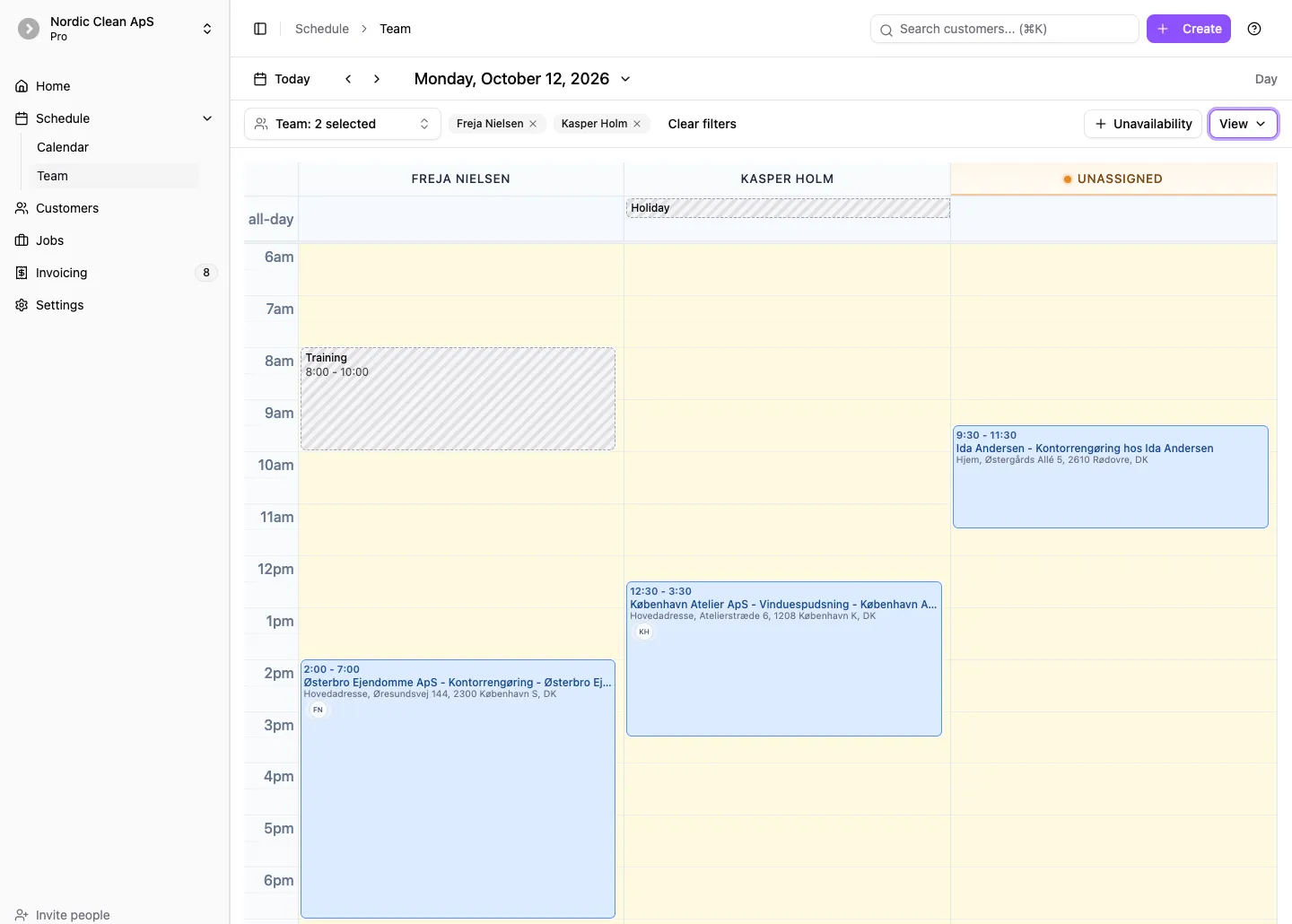
Compare visits and striped absence blocks while keeping unassigned work visible.
The member filter changes which columns you see, not who is assigned to a visit. A visit with several assignees appears in each visible assignee’s column; these are views of the same visit.
Register absence or unavailability
Owners and administrators can register, edit, and delete unavailability. Use it for periods such as holidays or training. The member must be eligible for dispatch and visible in your member filter to appear in the create dialog.
- In Schedule → Team, choose the day and click Unavailability above the calendar.
- Select Member. Check the selection even if it is already filled in.
- For part of a day, enter the start and end date and time in From and To. The end must be later than the start. For one or more whole days, select All day and choose the dates. Both dates are included: Monday to Wednesday covers all three days. Times use your organization’s timezone.
- Optionally enter a Reason (optional) of up to 200 characters. It becomes the label on the calendar; leaving it blank shows Unavailable.
- Click Save.
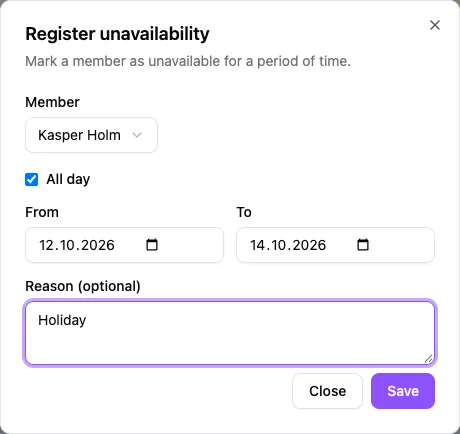
For all-day absence, select the first and last day away.
You can also click an empty slot in a member’s column and choose Unavailability instead of Visit. This fills in the member and time. Clicking the all-day row starts an all-day entry. The Unassigned column is for visits, not absence.
Read, hide, or change absence
Unavailability appears as a striped block in the member’s column. Timed entries sit in the time grid; all-day entries sit in the all-day row. Open View → Unavailability to show or hide these blocks. Hiding them does not delete them, and your browser remembers the choice. The day and member filters still apply.
Click a block to reopen it, change the member, dates, times, or reason, and click Save. Absence blocks cannot be dragged or resized. To remove one, click Delete in the dialog and confirm Delete unavailability? with Delete. This removes the entire entry, including all days in a multi-day absence.
Unavailability does not block scheduling. Existing visits keep their times and assignees, and you can still assign or move a visit into an absence period. Check the striped blocks and reschedule or reassign conflicting visits yourself.
Assign or reassign a visit
Drag a visit from Unassigned into a member’s column to assign it. Keep it at the same height if its start time should stay the same.
Dragging between member columns replaces the member you dragged it from with the destination member. Any other assignees remain. For example, moving a visit from Freja’s column to Kasper’s replaces Freja with Kasper; Mikkel stays assigned if he was already on the visit.
Dragging a visit into Unassigned removes the member whose column you dragged it from. If other assignees remain, the visit stays in their columns and does not appear under Unassigned.
To review or change several assignees explicitly, click the visit, select Edit assignees next to Assignees, choose the members, and click Save. The picker offers eligible members from the job’s team.
Adjust the time or duration
Drag a visit up or down to change its start time. Drag its bottom edge to change the end time. These changes save when you release the visit. Open it afterward to check its schedule and assignees.
For a visit with several assignees, the time change applies to the same visit in every member’s column. Moving a recurring visit changes that occurrence, not the recurring pattern. To change the pattern, edit the job’s recurring schedule.
Recurring visits must still be scheduled and not invoiced to move their start time. If a change fails, reopen the visit to check its saved details before continuing.
If a member, visit, or absence is missing
- Check the day and filters. Clear the member filter and enable View → Unassigned. A visit assigned to a hidden member is still assigned; it will not move into Unassigned.
- Check absence visibility. Enable View → Unavailability, check the absence dates, and include the member in your filter.
- Check dispatch eligibility. In Settings → Members, the Dispatch column must show Eligible for a member to appear in the Team calendar. An owner or administrator can use the member’s menu and select Enable for dispatch.
- Check the visible hours. In Settings → Calendar, adjust Calendar start time and Calendar end time. Snap interval controls the steps used when dragging or resizing; Slot interval controls the spacing of the visible grid. Click Save after changing these settings.
If you have not created any visits yet, start with Getting started with CleanTracker.