This guide starts after your organization is created. The goal is to get customers into the system, create the first job, and confirm the visits in the calendar.
Step by step
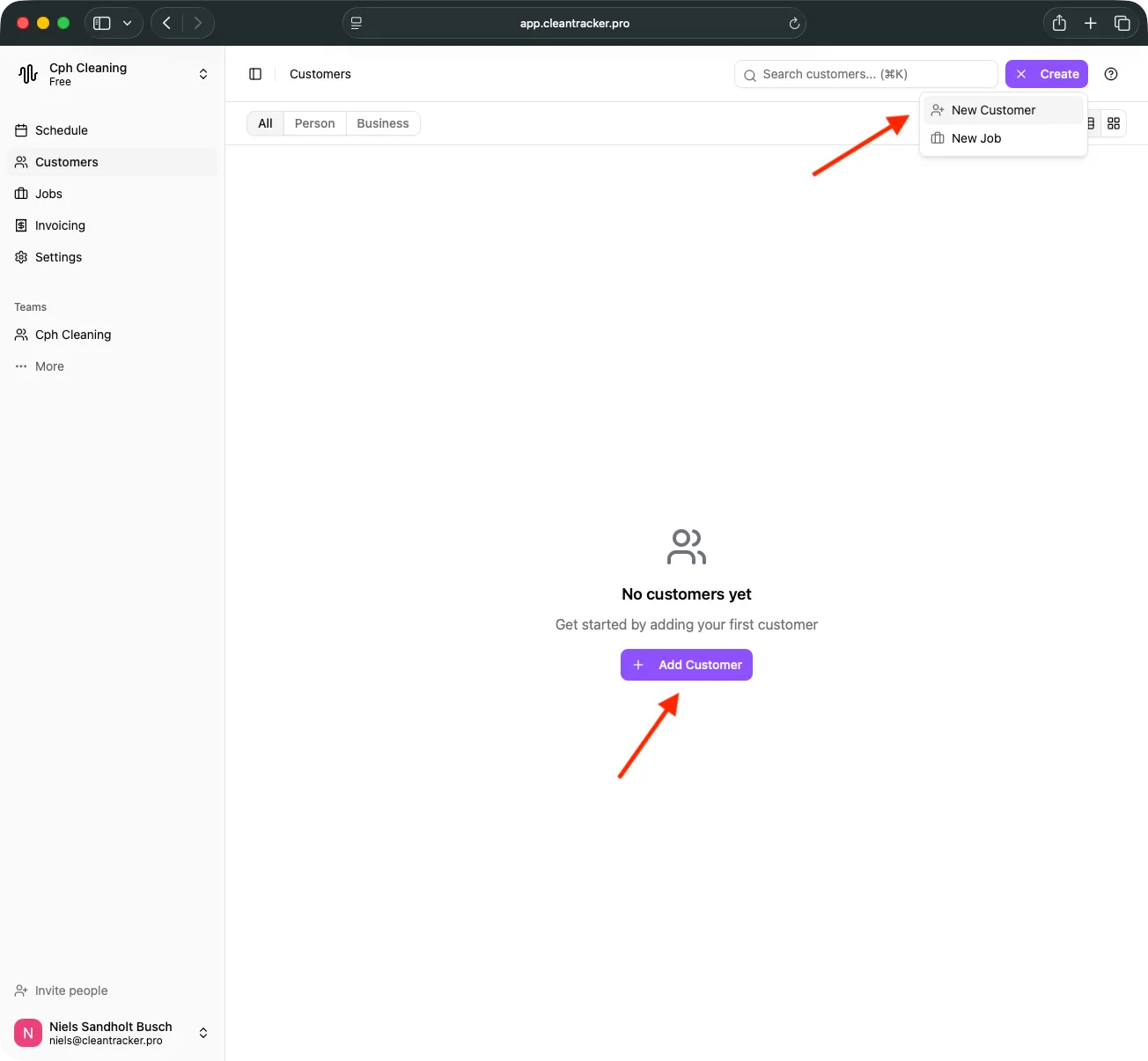
- Create or import customers — open Customers and choose Create customer or Import.
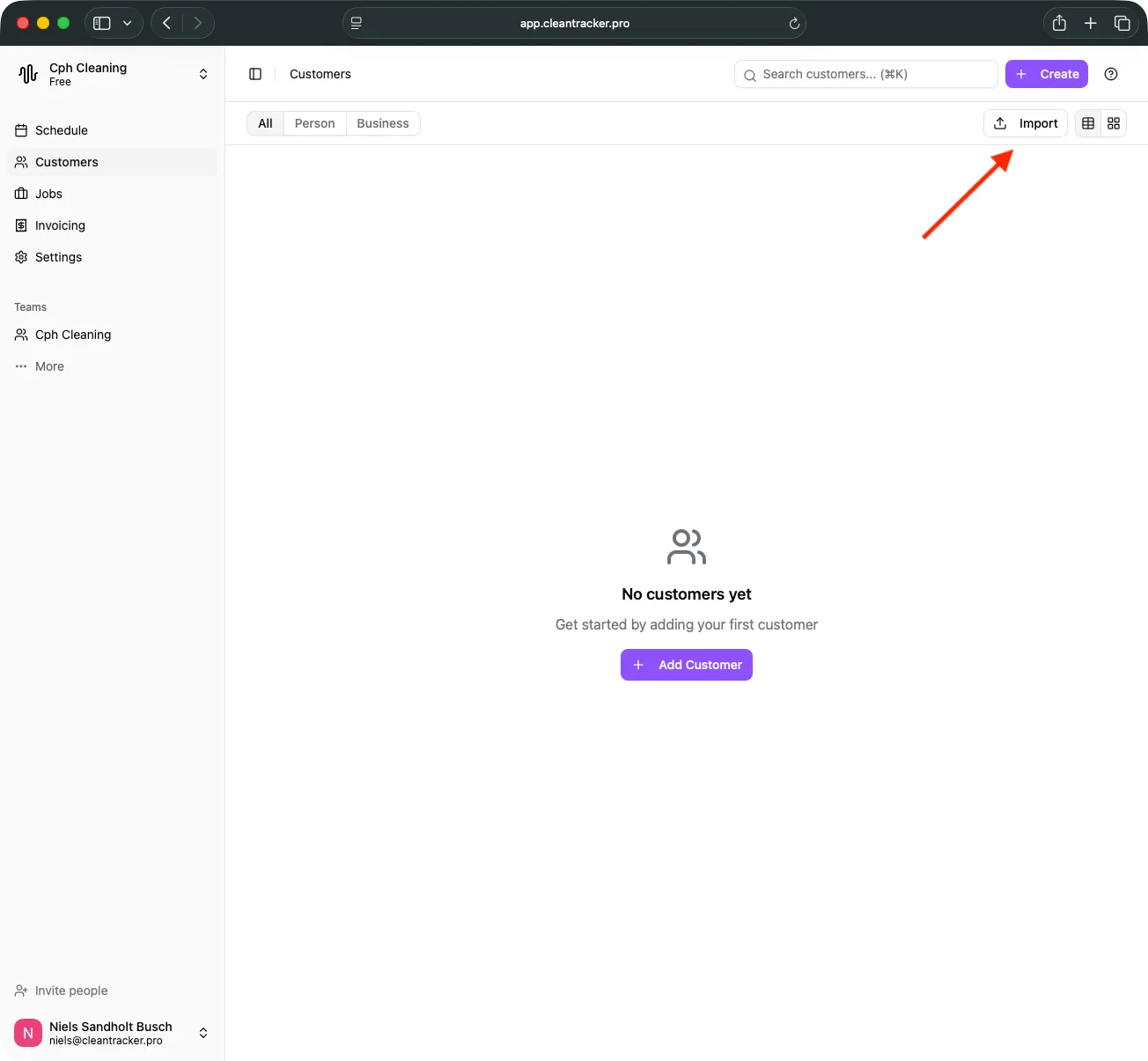
Import customers from CSV or Excel if you already have a list.
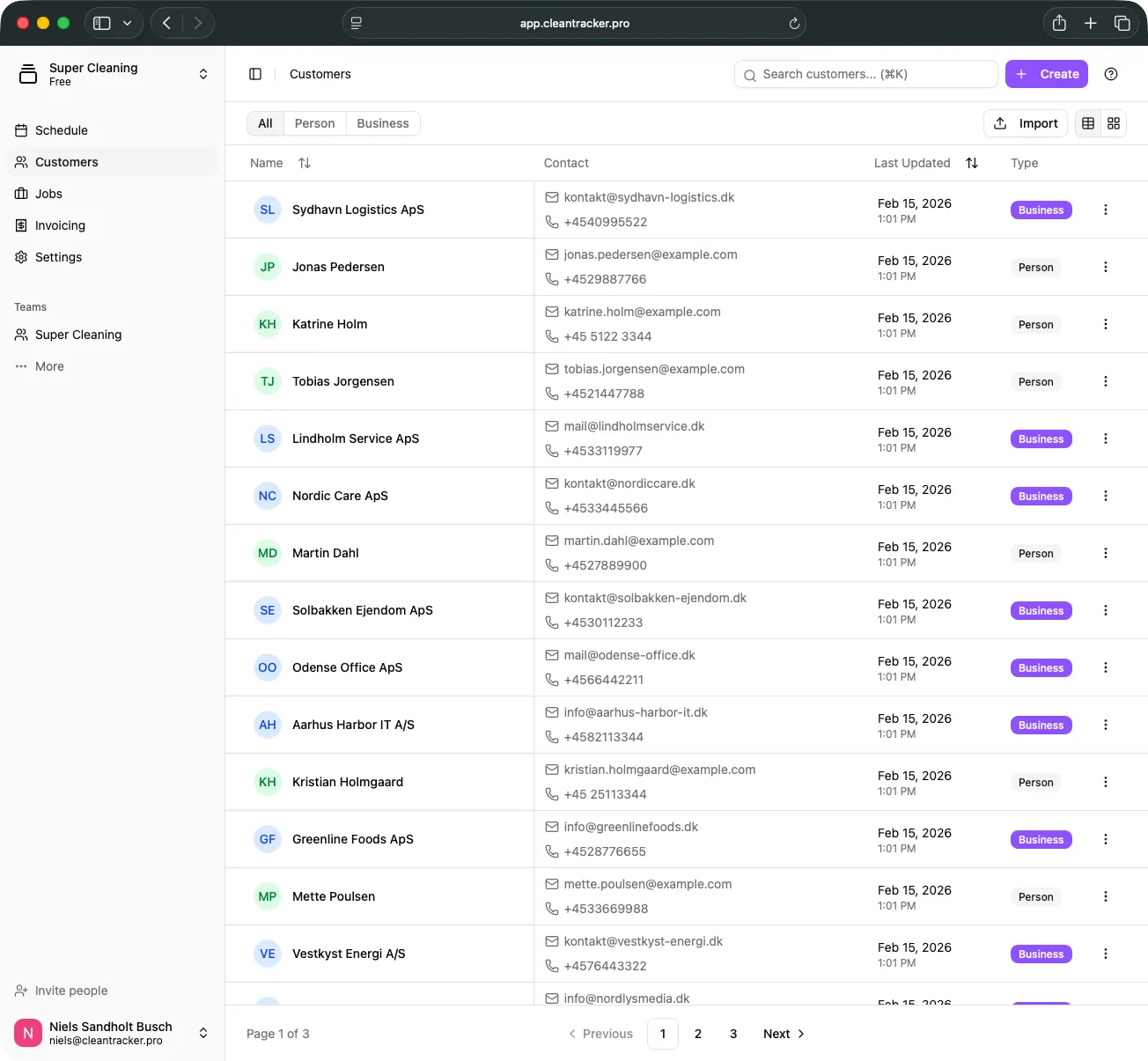
- Confirm the customer list — review that names, addresses, and contacts are correct before planning work.
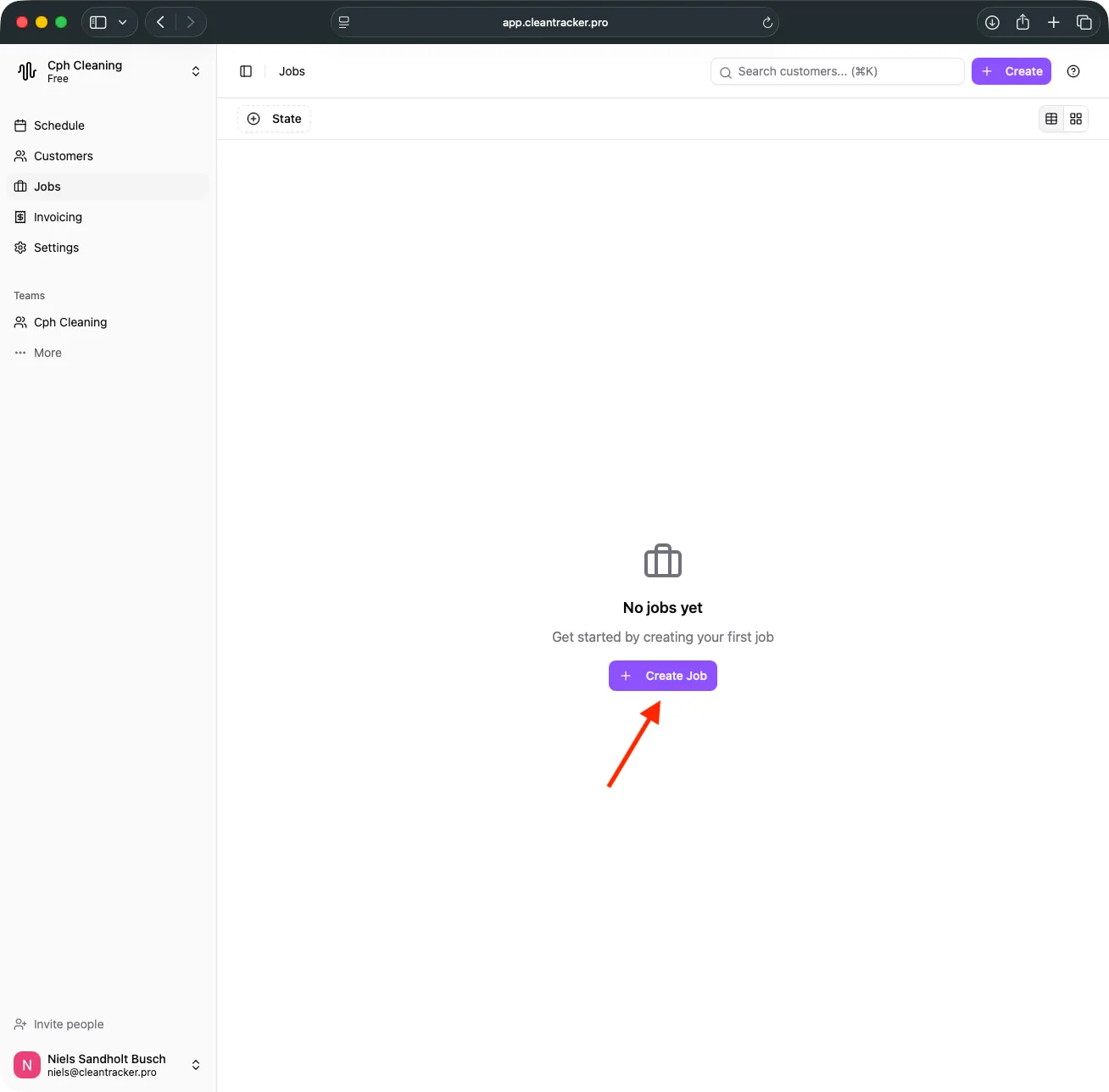
- Create your first job — go to Jobs and select New job. Choose the customer, location, and tasks.
- (Optional) Set up a recurring job — if the job repeats weekly or monthly, set a recurrence. Each occurrence generates a visit.
Need a full walkthrough? See How to Schedule Recurring Cleaning Jobs.
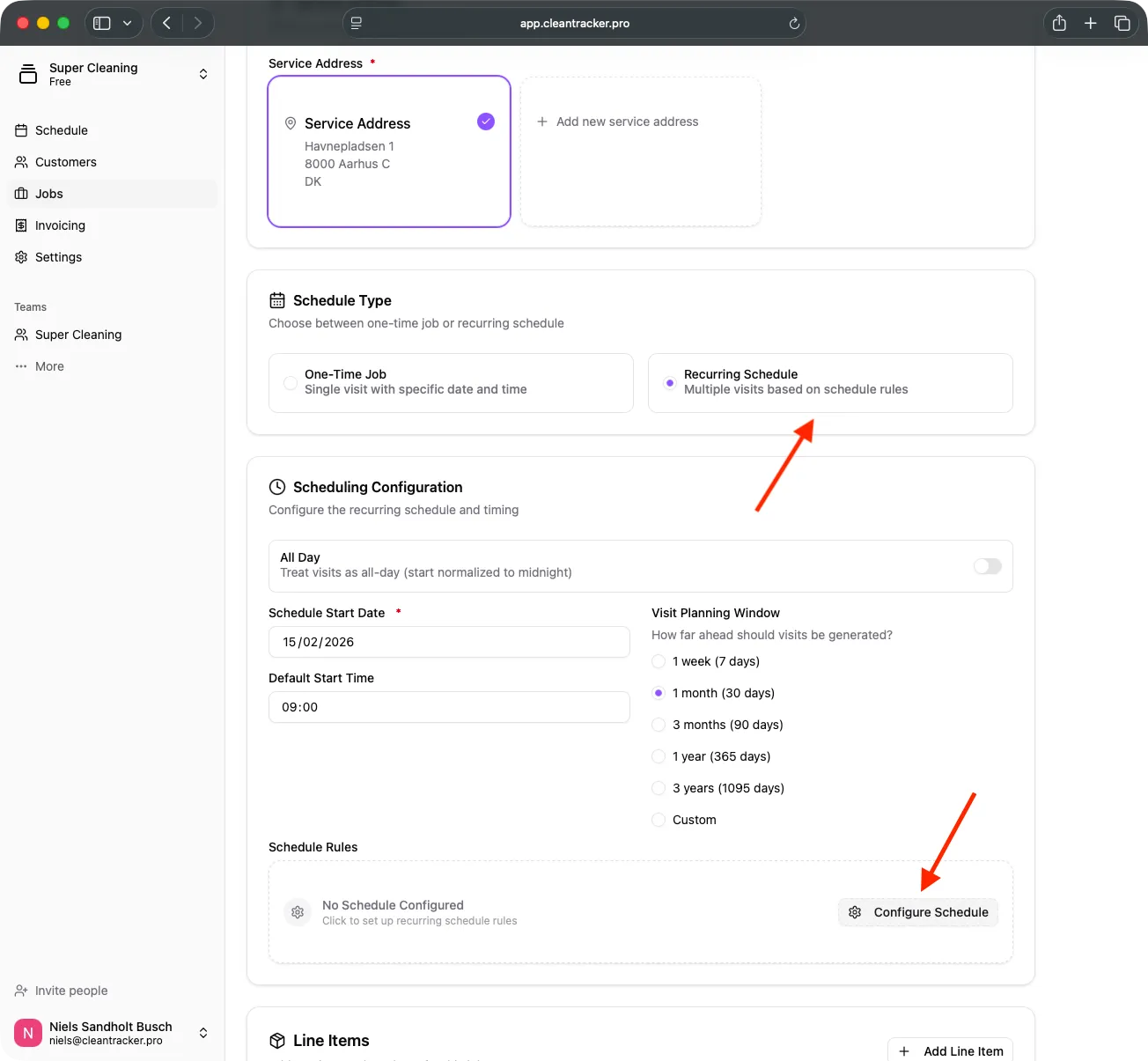
- View visits in the calendar — once the job is saved, open Calendar to see the generated visits and adjust times.
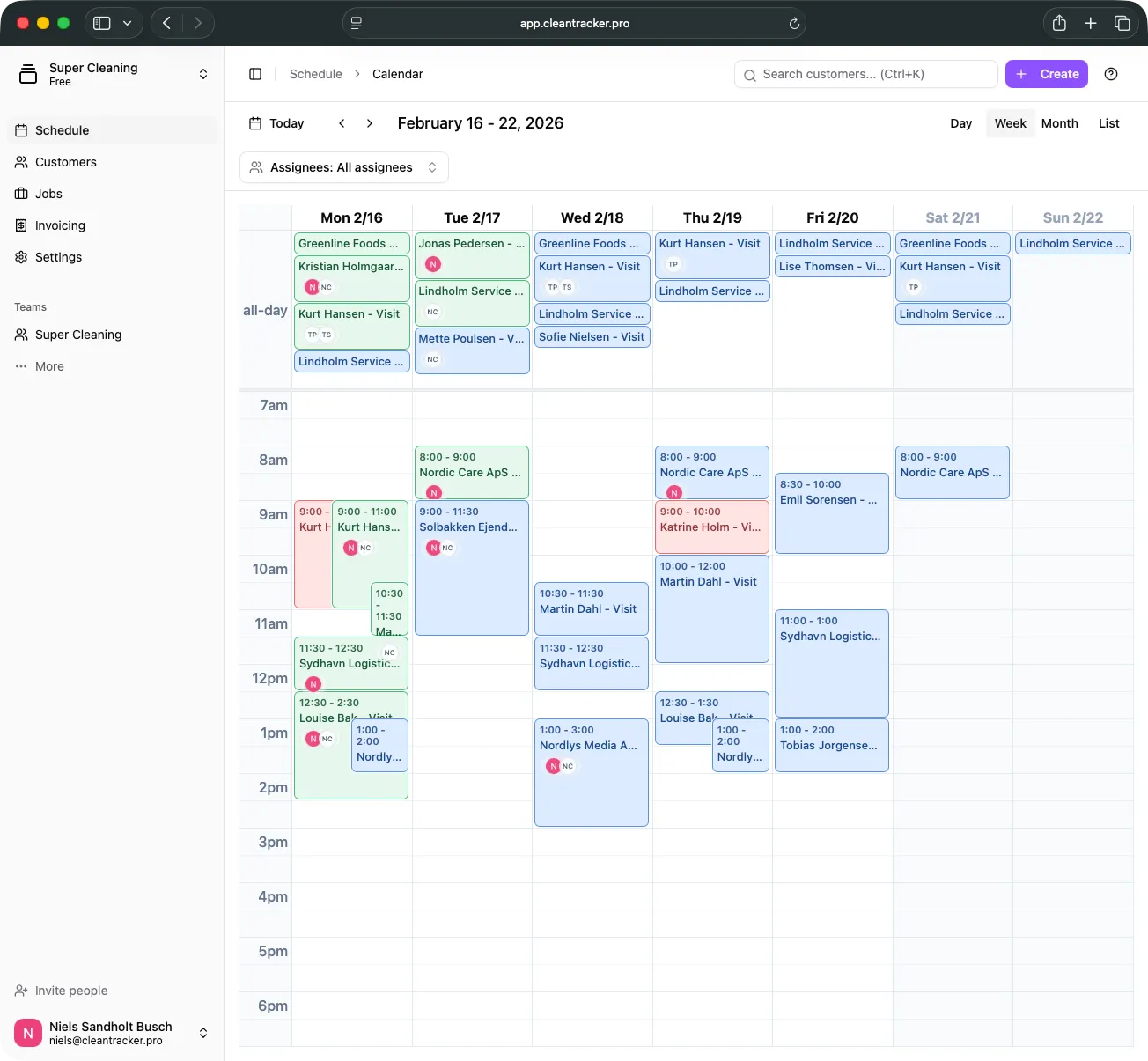
The calendar lists all visits, including recurring ones.
Checklist
- Customers are created or imported.
- The customer list has been reviewed.
- The first job is created.
- Any recurrences are configured.
- Visits appear in the calendar.
Need more help? Contact [email protected].