Many cleaning and service jobs repeat on a pattern. Instead of creating each future visit manually, you can define a recurring schedule once and let CleanTracker generate the visits for you.
Typical examples include:
- Every week
- Every 2 weeks
- Every 3 weeks
- Every 4 weeks
- Every weekday (Monday-Friday)
- Every month
- More specialized patterns with custom rules
CleanTracker has long supported flexible recurring schedules. The newer predefined options make common patterns faster to configure, while custom scheduling still handles advanced cases.
1. Choose single visit or recurring schedule
When you create a job, choose whether the schedule should be:
- Single visit: one standalone visit.
- Recurring: a repeating pattern that generates visits automatically.
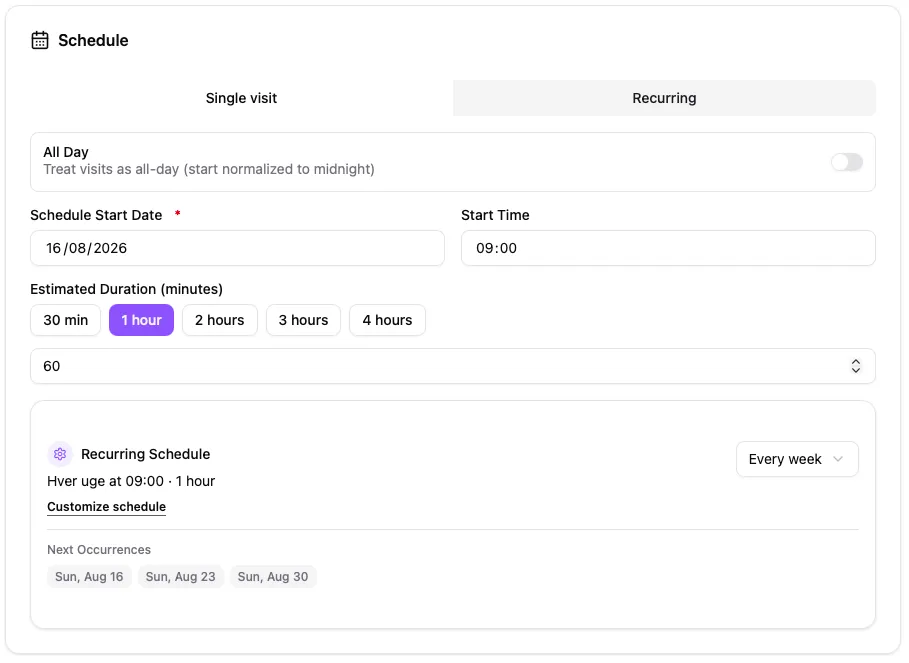
Use the schedule section to switch between a single visit and a recurring schedule.
2. Use predefined recurrence options
For common schedules, use the recurrence dropdown in the recurring section:
- Daily
- Every week
- Every 2 weeks
- Every 3 weeks
- Every 4 weeks
- Every weekday (Mon-Fri)
- Every month
- Custom
To open the detailed recurring configuration, either select Custom in the dropdown or click Customize schedule in the recurring card.
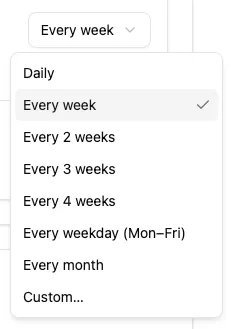
Predefined options are shortcuts for the most common recurring schedules.
3. Configure the recurring schedule
After opening the recurring configuration (via Custom or Customize schedule), configure:
- Repeat interval (for example every 1 week or every 2 weeks)
- Time unit (for example week)
- Weekdays the visit should run on
- Start date and start time from the job schedule
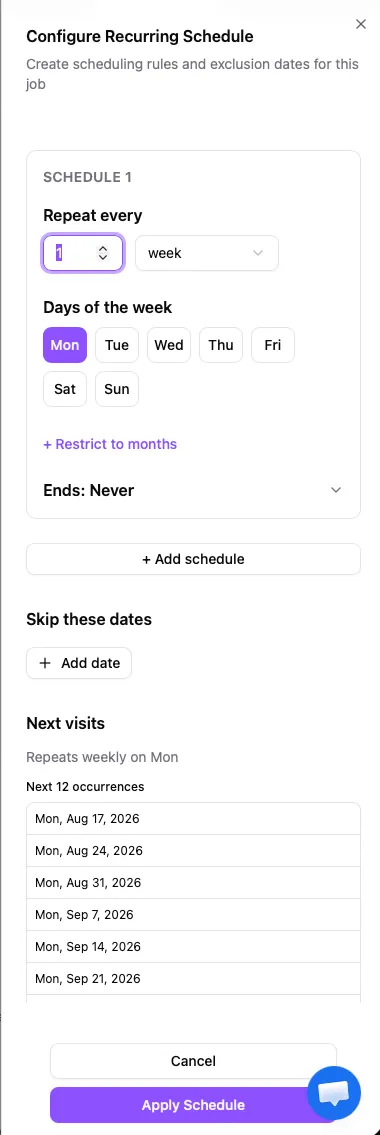
Configure the interval, weekday pattern, and verify the resulting next visits.
Choosing weekdays ties the schedule to specific days, so you can match how work is actually delivered at each customer.
4. Use custom recurring schedules for advanced patterns
Predefined options are fast shortcuts. Choose Custom when the customer schedule needs more flexibility.
A recurring setup can include multiple schedule rules in the same job. This helps you represent patterns that do not fit a single simple interval.
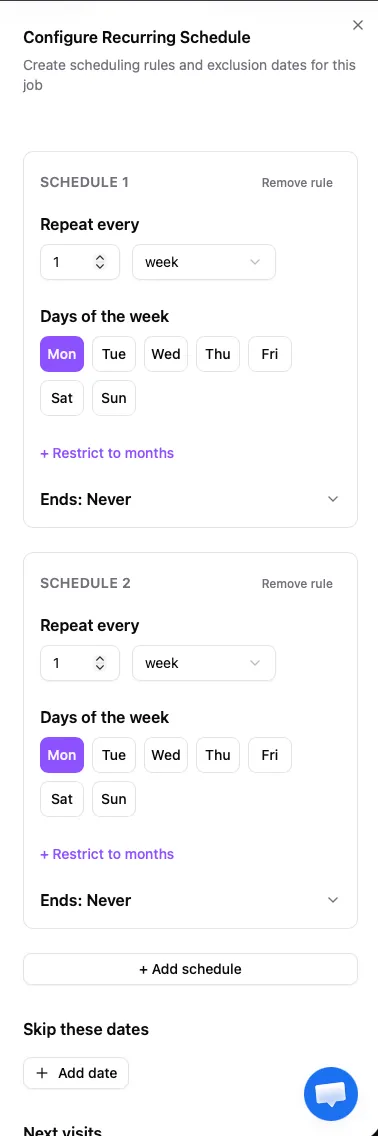
Custom scheduling can combine multiple schedule rules in one recurring setup.
5. Exclude specific dates
Use Skip these dates to prevent visits on dates that should be excluded, such as holidays, vacations, or temporary closures.
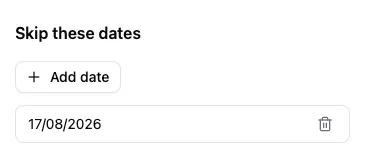
Exclusions are part of the recurring schedule, so you do not need to remove each generated visit manually.
6. Review next visits before applying
Use the Next visits preview to confirm that the schedule produces the expected dates before you apply it.
This is especially useful when you configure custom rules, multiple rules, or exclusions.
7. Apply and manage visits in the calendar
Clicking Apply schedule only applies the recurrence setup inside the job form.
CleanTracker generates the corresponding visits only after you save the job itself.
Those visits then appear in the calendar and can be managed in your normal planning workflow.
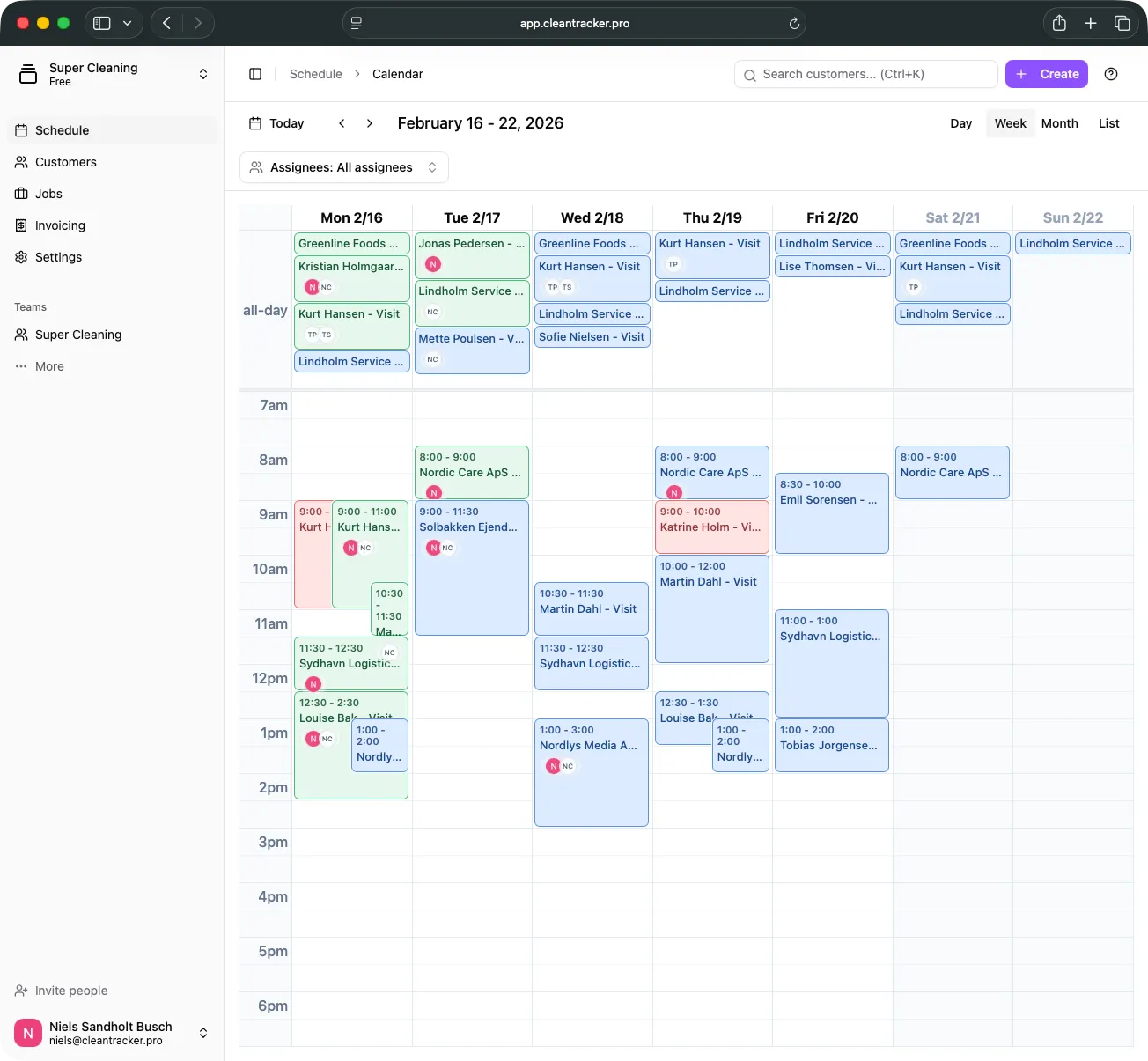
Generated visits appear in the calendar for day-to-day planning.
8. Practical examples
- Weekly office cleaning: every Monday.
- Every second week: every other Tuesday.
- Monthly cleaning: once per month.
- Complex customer agreement: use Custom and combine multiple schedule rules.
9. Define once, let CleanTracker generate the visits
Recurring scheduling helps you avoid manual creation of every future visit while keeping full control of timing and exceptions.
For setup basics, see Getting started with CleanTracker. For field work execution, see Using the CleanTracker mobile app.
Need additional help? Contact support.