Invoice templates control the title, recipient message and line text sent to your accounting system. Combine plain text with variables to include details such as the customer name or the period covered by the invoice.
You need permission to edit the relevant organization settings, customer, job or service. You can prepare templates before connecting an accounting system; creating invoices requires a configured integration. For e-conomic setup, see Connect CleanTracker to e-conomic.
Set your organization’s defaults
- Open Settings → Organization and find Invoice templates.
- Enter a Title template for the invoice heading and a Description template for the recipient message. The description supports line breaks.
- Place the cursor where you want a value, click Insert variable, and choose a variable.
- Click Save invoice templates.
For example, use this title when invoicing last month’s work:
Cleaning – {{date.previousMonth}}For the description, you could use:
{{invoice.visitCount}} visits from {{invoice.periodStart}} to {{invoice.periodEnd}}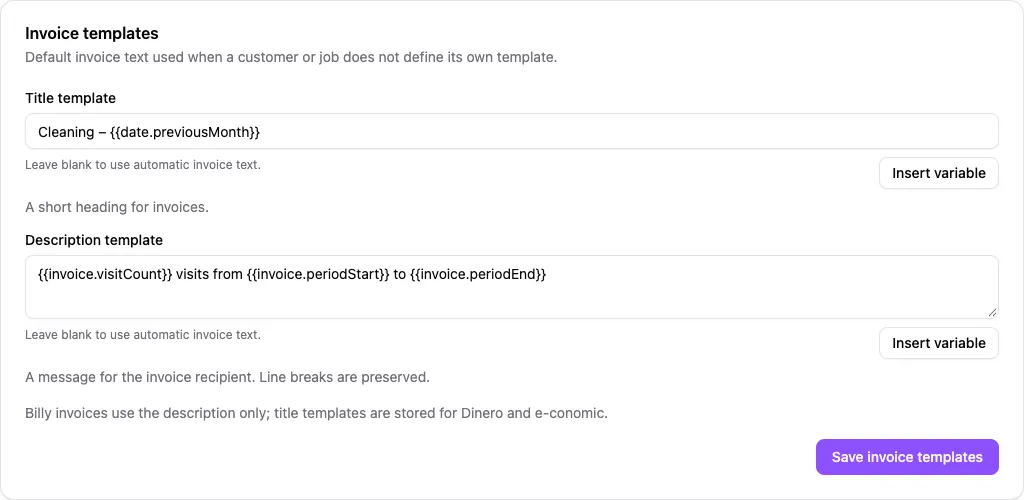
Leave either field blank to use automatic invoice text for that field, unless a customer or job supplies an override.
Override text for a customer or job
The title and description are chosen independently:
| Invoice type | Text used, in order of priority |
|---|---|
| Consolidated customer invoice | Customer template → organization template → automatic text |
| Invoice per job | Job template → organization template → automatic text |
Customer templates do not apply to invoices per job. A blank override inherits the organization default; it does not remove the default text.
To customize a customer’s consolidated invoices, open Customers, select the customer and click Edit. Expand Additional details if needed. Under Address details, find Invoice title template and Invoice description template, then click Save Changes. The Invoice per job checkbox controls whether invoices are split by job; customer templates apply when it is off.
To customize invoices per job, open Jobs, select the job and click Edit. Expand Advanced settings and find Invoicing Configuration. Fill in Invoice title template or Invoice description template, then click Update Job. The text below each field shows the organization default used when the field is blank.
Customize invoice lines
Use Invoice text to change what the customer sees for a service line while keeping the service’s name and description for your team.
On the job, find Line Items and use the pencil button to edit a line. Click Customize beside Invoice text if the editor is collapsed. Enter the text, use Insert variable as needed, then click the checkmark to save the line. You can also edit invoice text in the job-edit form; save the job when finished.
Deep cleaning – {{job.number}} – {{customer.name}}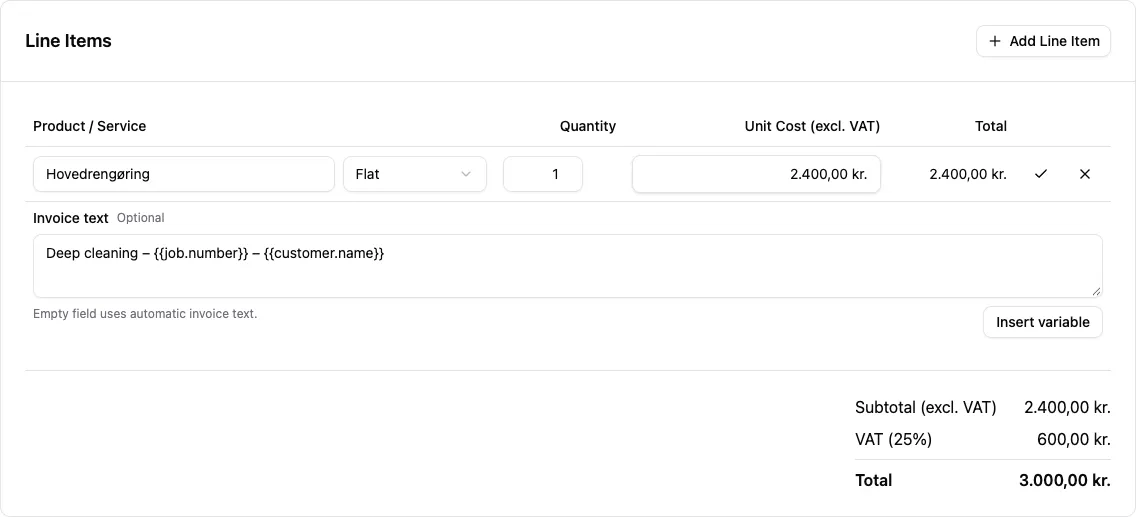
To reuse line text, go to Settings → Services, edit a service and customize its Invoice text, then click Save Changes. Selecting that service for a job copies the template to the job line. You can edit the copy independently; later changes to the service preset do not update existing job lines.
A blank line template uses the usual automatic text: the line name in Dinero and e-conomic, or the description (falling back to the name) in Billy. Variables in ordinary names and descriptions are not expanded.
Choose the right variables
Use the variable picker to avoid spelling errors. These variables are available in titles, descriptions and invoice line text:
| Variables | What they insert |
|---|---|
{{organization.name}} | Your organization’s name |
{{customer.name}}, {{customer.taxNumber}} | Customer name and tax number; a missing tax number becomes empty text |
{{invoice.date}} | Invoice date |
{{invoice.visitCount}} | Number of visits included on the invoice |
{{invoice.periodStart}}, {{invoice.periodEnd}} | Earliest and latest scheduled visit dates included on the invoice |
{{date.previousMonth}}, {{date.currentMonth}}, {{date.nextMonth}} | Month and year relative to the invoice date |
Invoice line text also supports {{job.title}}, {{job.description}} and {{job.number}}. These refer to the job associated with that line, even on a consolidated invoice. A missing job description becomes empty text. Job variables cannot be used in invoice titles or descriptions.
Dates use the organization’s timezone. Date and month text is Danish for organizations set to Denmark and English otherwise, independently of your browser language. Previous month means the month before the invoice date, not the month of the visit. For example, on an October 2026 invoice for a Danish organization, {{date.previousMonth}} becomes september 2026.
Only plain text and supported variables are accepted. Loops, conditions and expressions are not supported. Each template can contain up to 2,000 characters.
Accounting systems and later changes
- Dinero: supports both the title and description, sent as the invoice description and comment.
- e-conomic: supports both. After variables are filled in, the title must be at most 250 characters and the description at most 1,000. Longer text causes invoice creation to fail rather than being shortened.
- Billy: uses the description only. Titles are saved in CleanTracker for other providers, but are not sent to Billy or added to the description.
Custom line text is supported for all three providers.
Templates are filled in when CleanTracker creates the invoice, using the current templates and data. Saving a change does not rewrite an invoice already created in your accounting system. Retrying a task that resumes an existing invoice does not update its text either.
If a template error prevents invoice creation, correct the unsupported variable or syntax, or shorten the text, and save before retrying. Check both the relevant override and the organization default when an invoice uses unexpected text.