Connect CleanTracker to e-conomic to create invoices directly from your jobs and visits.
CleanTracker transfers customer details and invoice lines to e-conomic, so you do not have to create the invoices manually.
Before you begin
Before connecting e-conomic to CleanTracker, check a few settings in e-conomic. These must be in place before CleanTracker can create new customers and invoices:
- A default customer group
- Default payment terms
- At least one active product for invoicing
The e-conomic screenshots in this guide use the Danish interface. The instructions include the Danish labels with their English meanings to help you find the settings.
1. Choose a default customer group
In e-conomic, go to Salg → Opsætning → Kundeopsætning (Sales → Setup → Customer setup).
Under Kundegruppe (Customer group), choose the group that new customers from CleanTracker should belong to. Many accounts already have a group such as Diverse (Miscellaneous), but you can choose whichever group suits your business. What matters is that a default customer group is selected.
2. Choose default payment terms
On the same page, use Betalingsbetingelser (Payment terms) to select the default terms for new customers. For example, you might choose Netto 14 dage (Net 14 days).
If suitable payment terms do not exist, create them under Salg → Opsætning → Betalingsbetingelser (Sales → Setup → Payment terms), then select them in the customer setup.
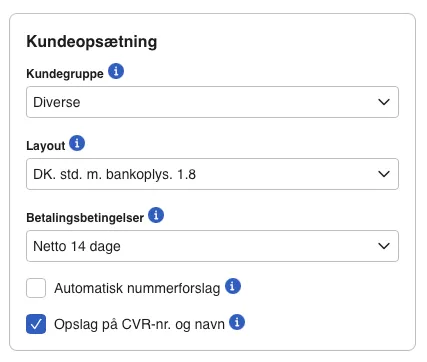
Choose the default customer group and payment terms in Kundeopsætning (Customer setup).
3. Create or choose a product for invoicing
CleanTracker needs one product in e-conomic when creating invoice lines. If you do not already have a suitable active product, create one under Salg → Varer → Varer (Sales → Products → Products).
The product is used for accounting in e-conomic. The descriptions, quantities, and prices on individual invoice lines still come from CleanTracker.
One product is enough for a typical setup. You do not need to create an e-conomic product for every service in CleanTracker. Regular cleaning, window cleaning, and oven cleaning can still appear as separate invoice lines even when they use the same e-conomic product.
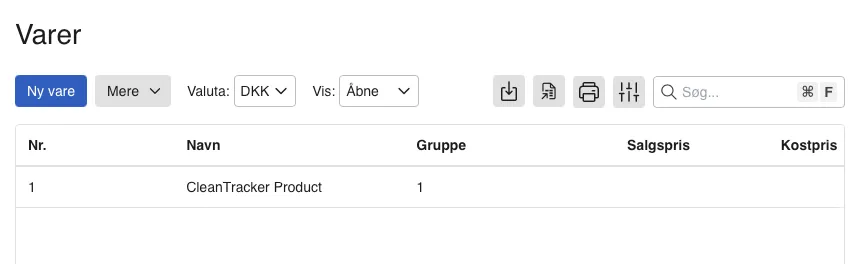
Create or choose an active product under Salg → Varer → Varer.
Connect e-conomic to CleanTracker
- In CleanTracker, go to Settings → Integrations.
- Find e-conomic and click Connect to e-conomic.
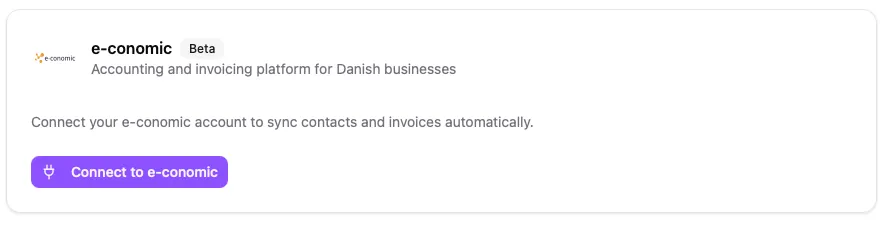
Start the connection from the e-conomic card in CleanTracker.
- You are redirected to e-conomic. Sign in if prompted.
- Check that you are giving CleanTracker access to the correct e-conomic agreement.
- Click Tilføj app (Add app).
- You are automatically returned to CleanTracker, where the connection is shown as Connected.
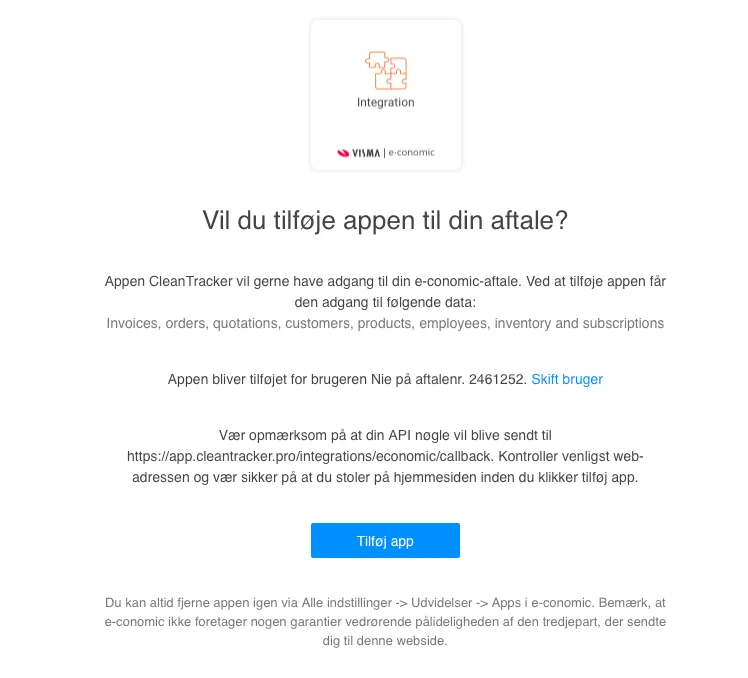
Check the agreement before clicking Tilføj app (Add app).
Choose a product for invoicing
Once connected, choose the e-conomic product that CleanTracker should use for invoicing:
- Find Standard product for invoicing on the e-conomic card.
- Select the product in the Product field.
- Click Save product and check that the Product saved confirmation appears.
If you have just created a product in e-conomic, click Refresh to load the product list again.
The product determines the accounting treatment in e-conomic. Invoice line descriptions, quantities, and prices still come from CleanTracker.
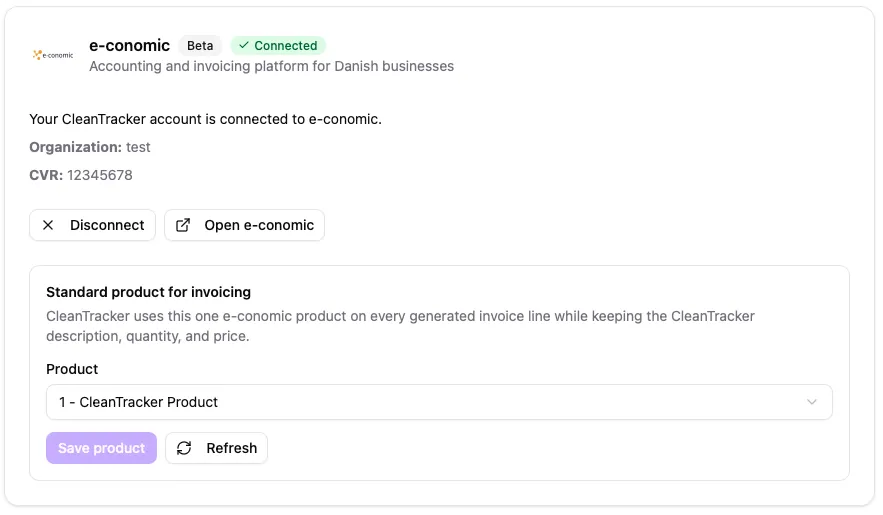
Select and save the product to use on invoice lines.
How invoicing works
When CleanTracker creates an invoice in e-conomic:
- CleanTracker finds the customer in e-conomic.
- If the customer does not exist, CleanTracker creates them using the default customer group and payment terms from e-conomic.
- CleanTracker creates invoice lines with your services, quantities, and prices, using the selected e-conomic product on each line.
- The invoice is initially created as a draft in e-conomic.
Whether the invoice is then booked automatically depends on your organization’s invoicing settings in CleanTracker. If automatic booking is not selected, the invoice remains a draft.
Having trouble with setup?
The default customer group is missing
In e-conomic, go to Salg → Opsætning → Kundeopsætning (Sales → Setup → Customer setup) and select a default customer group under Kundegruppe.
Payment terms are missing
In e-conomic, go to Salg → Opsætning → Kundeopsætning (Sales → Setup → Customer setup) and select default payment terms under Betalingsbetingelser.
No product can be selected
Check that at least one active product exists under Salg → Varer → Varer (Sales → Products → Products) in e-conomic. Then click Refresh on the e-conomic card in CleanTracker.
If the previously selected product is no longer available, choose another active product and click Save product.
CleanTracker still asks for a standard product
Selecting a product from the list is not enough. Also click Save product and check that Product saved appears.
The wrong e-conomic agreement was connected
Click Disconnect on the e-conomic card in CleanTracker. Connect again and check that you choose the correct agreement in e-conomic. Then check the product selection in CleanTracker, and select and save a product from the correct agreement.
If you still need help, contact support.